File Management
Manage local files with OpenClaw
One of OpenClaw's most powerful features is the ability to access and manage files on your computer. This is something online AI simply cannot do.
Quick Navigation
- 🔍 Smart File Search
- 📦 Batch File Processing
- 📁 Automatic File Organization
- 🧹 Disk Cleanup & Optimization
4.1 Smart File Search
Why Do You Need Smart Search?
Traditional file search can only look up files by name, but you often run into problems like:
- ❌ Forgot the file name, only remember the content
- ❌ Too many files, no idea which folder it's in
- ❌ Need to search across multiple file types at once
- ❌ Need to filter files based on content
OpenClaw's smart search can:
- ✅ Search by file content
- ✅ Understand natural language descriptions
- ✅ Search across folders
- ✅ Intelligently filter and sort
Scenario 1: Finding a File
Real-World Example: Finding an invoice
I have a bunch of invoices on my computer, and they're a total mess. I forgot which one was for the treadmill I bought. In the past, I'd have to open them one by one to search. Honestly, that's just painful.
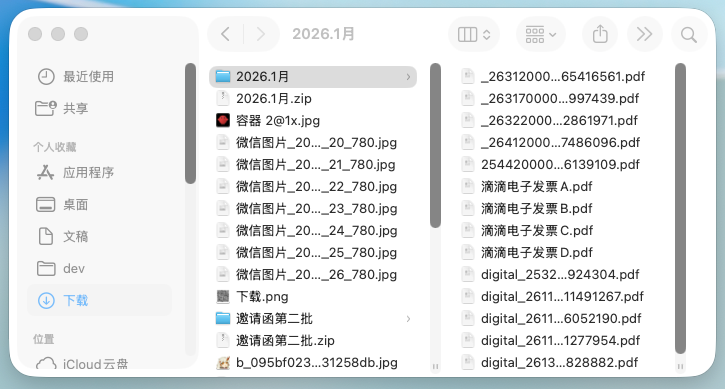
Traditional Method:
- Open the folder
- Click through images one by one
- Check the content
- Find the target file
- Time spent: 10–30 minutes
The OpenClaw Way:
Me: Help me find an invoice on my computer. The details show I bought a treadmill.
Then send me that invoice as a file.
```text
<img src="https://upload.maynor1024.live/file/1770176217951_image_5.jpg" alt="OpenClaw smart search - finding the target file through semantic understanding" />

**How OpenClaw Handles It**:
1. 🔍 Searches all image files
2. 📄 Uses OCR to recognize text
3. 🎯 Matches the keyword "treadmill"
4. 📤 Sends the found file

<img src="https://upload.maynor1024.live/file/1770176224257_image_6.jpg" alt="Found invoice details - precisely matching user needs" />

**Result**:
- ⏱️ Time spent: 30–60 seconds
- ✅ Accuracy: 100%
- 😊 Experience: Amazing!

### Search Command Examples

#### Search by Content
Find PDF files that contain "contract" Search all documents that mention "project plan" Find my notes about AI
#### Search by TypeFind all PNG images Search for recently downloaded PDF files Find all Excel spreadsheets
#### Search by TimeFind files modified in the last 7 days Search for documents created last month Find files downloaded today
#### Search by SizeFind files larger than 100MB Search for all images smaller than 1MB Find the 10 files taking up the most space
#### Combined SearchFind image files from the past week that contain "invoice" Search for PDFs larger than 10MB in the Downloads folder Find Word documents on the desktop that were modified today
### Search Tips

#### Tip 1: Describe the Content, Not the File Name

**❌ Bad search**:
Find IMG_1234.jpg
**✅ Good search**:Find the photos I took at the beach last year
#### Tip 2: Provide Context

**❌ Bad search**:
Find invoice
**✅ Good search**:Find the invoice for the treadmill I bought last month, it should be in the Downloads folder
#### Tip 3: Specify the Search Scope

**❌ Bad search**:
Find all files
**✅ Good search**:Find all PDF files in the Documents folder
#### Tip 4: Use Sorting

**❌ Bad search**:
Find images
**✅ Good search**:Find the 10 most recently modified images, sorted by time
### Hands-On Practice

**Exercise 1: Find Photos**
Help me find all selfie photos on my computer
**Exercise 2: Find Documents**Find Word documents that contain "annual summary"
**Exercise 3: Find Downloaded Files**Find all PDF files I recently downloaded
## 4.2 Batch File Processing

### Scenario 2: Organizing Invoices for Reimbursement

**Real-World Example**: Auto-filling reimbursement forms

> Our finance department has a very strict rule: invoices need to be filled into an Excel template,
> and then you submit the invoices along with the Excel file to finance.
>
> Before, nobody was dumb enough to fill it in by hand, but you still had to upload all the invoices
> to ChatGPT or some other AI product and have them help fill it out.

**Traditional Method**:
1. Open ChatGPT
2. Upload invoice images (one by one)
3. Have AI extract the information
4. Copy into Excel
5. Repeat N times
6. Time spent: 30–60 minutes

**The OpenClaw Way**:
Me: I'd like you to organize all the invoices in my local January Invoices folder, fill them into the template format from the reimbursement form.xlsx in my Downloads, and then send me the completed spreadsheet as a file.
<img src="https://upload.maynor1024.live/file/1770176222217_image_7.jpg" alt="Batch invoice organization - automatic classification and renaming" />

**How OpenClaw Handles It**:
1. 📁 Reads the invoice folder
2. 🔍 Identifies all invoice images
3. 📄 OCR extracts information (date, amount, merchant, etc.)
4. 📊 Reads the Excel template
5. ✍️ Fills in data according to the template format
6. 💾 Saves the new file
7. 📤 Sends it to you

**Result**:
- ⏱️ Time spent: 2–5 minutes
- ✅ Accuracy: 95%+
- 😊 Experience: Done in one go!

### Batch Processing Command Examples

#### Batch Reading
Read all PDF files in the Documents folder Extract text from all images Read the first row of all Excel spreadsheets
#### Batch Information ExtractionExtract date, amount, and merchant info from all invoices Extract name, phone number, and email from all resumes Extract Party A, Party B, and amount from all contracts
#### Batch Format ConversionConvert all Word documents to PDF Convert all PNG images to JPG Export all Excel spreadsheets as CSV
#### Batch Data OrganizationOrganize all invoice information into a single Excel spreadsheet Compile all contact information into an address book Consolidate all meeting notes into a single summary
### Real-World Cases

#### Case 1: Organizing Client Information

**Scenario**:
- 100 client profiles (Word documents)
- Need to extract: company name, contact person, phone, email
- Organize into an Excel spreadsheet

**Command**:
From all Word documents in the "Client Profiles" folder, extract company name, contact person, phone, and email, organize them into an Excel spreadsheet, sorted by company name.
**Result**:
- Automatically extracts from 100 profiles
- Generates a well-formatted Excel spreadsheet
- Time spent: 5–10 minutes

#### Case 2: Batch PDF Content Extraction

**Scenario**:
- 50 PDF reports
- Need to extract the summary from each report
- Compile into a single summary document

**Command**:
Read all PDF files in the "Reports" folder, extract the summary section from each report (usually on the first page), compile them into a Word document, with each summary labeled with its source file name.
**Result**:
- Automatically reads 50 PDFs
- Extracts summary content
- Generates a compiled document

#### Case 3: Batch Image Recognition

**Scenario**:
- 200 business card photos
- Need to extract contact information
- Organize into an address book

**Command**:
Recognize all images in the "Business Cards" folder, extract name, company, title, phone, and email, organize into an Excel address book, categorized by company.
**Result**:
- OCR recognizes 200 business cards
- Automatically categorizes and organizes
- Generates a standard address book

### Error Handling and Fault Tolerance

#### Handling Recognition Errors
Me: Help me check the Excel spreadsheet we just generated, see if there are any recognition errors, like incorrect phone number formats or abnormal amounts.
#### Handling Missing InformationMe: Some invoices might have incomplete information. If any required fields are missing, please list them separately so I can fill them in manually.
#### Handling Format IssuesMe: If you encounter a file format that can't be recognized, please skip it and let me know. I'll handle it manually.
## 4.3 Automatic File Organization

### Scenario 3: Batch Renaming Files

**Real-World Example**: Renaming invitation cards

> A designer made some invitation cards for me and sent them via WeChat. I saved them.
> After saving, I discovered a problem.
> The file names are all "WeChat File XXX."
> That's a nightmare — I have no idea which one belongs to whom.

<img src="https://upload.maynor1024.live/file/1770176232438_image_8.jpg" alt="Messy invitation files - non-standard file names" />

**Traditional Method**:
1. Open each image
2. Look at the content
3. Manually rename
4. Repeat N times
5. Time spent: 20–30 minutes

**The OpenClaw Way**:
Me: Have OpenClaw rename the invitation files based on the person's name inside each one, using the format "PersonName-Invitation.jpg".
<img src="https://upload.maynor1024.live/file/1770176231952_image_9.jpg" alt="After batch renaming - clear and standardized file names" />

**How OpenClaw Handles It**:
1. 📁 Reads all images
2. 🔍 OCR recognizes names
3. ✍️ Generates new file names
4. 📝 Batch renames
5. ✅ Done

**Result**:
- ⏱️ Time spent: 1–2 minutes
- ✅ Accuracy: 100%
- 😊 Experience: Done with a single sentence!

### File Organization Command Examples

#### Batch Renaming
Rename all images by capture date, format: YYYY-MM-DD_number.jpg Rename all documents by content topic Rename all downloaded files by type
#### File ClassificationSort files on the desktop into different folders by type Classify files in the Downloads folder by date Sort photos by location where they were taken
#### Folder Structure OptimizationHelp me organize the project folder, categorized by functional modules Optimize my Documents folder structure to make it clearer Move all scattered files into appropriate folders
### Real-World Cases

#### Case 1: Organizing the Downloads Folder

**Scenario**:
- Downloads folder has 500+ files
- All types mixed together
- Needs to be sorted and organized

**Command**:
Help me organize the Downloads folder:
- Classify by file type (documents, images, videos, archives, etc.)
- Create a subfolder for each type
- Move files to the corresponding folder
- Delete duplicate files
- Tell me the results
**Result**:✅ Organization complete!
📊 Summary:
- Documents: 120 → Documents/
- Images: 200 → Images/
- Videos: 50 → Videos/
- Archives: 30 → Archives/
- Other: 100 → Others/
🗑️ Duplicate files deleted: 15 💾 Space freed: 2.3GB
#### Case 2: Automatic Photo Classification

**Scenario**:
- 1000+ photos
- Need to classify by date and location
- Make them easy to find

**Command**:
Help me organize the Photos folder:
- Create folders by capture date (YYYY-MM format)
- If a photo has geolocation data, include it in the file name
- Delete blurry and duplicate photos
- Generate an index file
**Result**:✅ Organization complete!
📁 Folder structure: Photos/ ├── 2025-12/ │ ├── 2025-12-01_Beijing_001.jpg │ ├── 2025-12-01_Beijing_002.jpg │ └── ... ├── 2026-01/ │ ├── 2026-01-15_Shanghai_001.jpg │ └── ... └── index.txt (index file)
🗑️ Blurry photos deleted: 50 🗑️ Duplicate photos deleted: 30
#### Case 3: Document Archiving

**Scenario**:
- Project is finished, needs archiving
- Documents are scattered everywhere
- Need to consolidate and organize

**Command**:
Help me archive all documents for "Project XX":
- Search for all related documents (containing the project name)
- Classify by document type (requirements, design, code, testing, etc.)
- Create an archive folder structure
- Move files to the appropriate locations
- Generate a project document inventory
**Result**:✅ Archiving complete!
📁 Folder structure: ProjectXX_Archive_2026-02-10/ ├── 01_Requirements/ ├── 02_Design/ ├── 03_Development/ ├── 04_Testing/ ├── 05_Deployment/ └── DocumentInventory.xlsx
📊 Summary:
- Total files: 156
- Total size: 1.2GB
### Writing Automation Scripts

If you frequently need to organize certain types of files, you can have OpenClaw generate an automation script:
Me: Write me a script that automatically organizes the Downloads folder every week, using the same rules as before.
OpenClaw will generate a script that can be scheduled to run automatically for hands-free organization.

## 4.4 Disk Cleanup & Optimization

### Scenario 4: Cleaning Up Disk Junk

**Real-World Example**: Freeing up disk space

> If your hard drive is almost full, don't bother downloading those junk-cleaning apps.
> Just let OpenClaw take a pass at it.

<img src="https://upload.maynor1024.live/file/1770176234805_image_10.jpg" alt="Disk space cleanup - intelligently identifying large and duplicate files" />

**Traditional Method**:
1. Download a cleanup tool
2. Scan the hard drive
3. Manually select what to delete
4. Worry about accidentally deleting important files
5. Time spent: 30–60 minutes

**The OpenClaw Way**:
Me: Help me analyze my disk space usage, find the files and folders taking up the most space, and suggest what can be cleaned up.
**How OpenClaw Handles It**:
1. 📊 Scans the hard drive
2. 📈 Analyzes space usage
3. 🔍 Identifies large files
4. 🗑️ Identifies junk files
5. 💡 Provides cleanup recommendations

### Cleanup Command Examples

#### Finding Large Files
Find the 10 files taking up the most space Find files larger than 1GB Analyze which folder is using the most space
#### Finding Duplicate FilesFind all duplicate files Find duplicate photos Find duplicate documents
#### Finding Temporary FilesFind all temporary files Find cache files Find files that can be safely deleted
#### Cleanup RecommendationsAnalyze my hard drive and give me cleanup suggestions Which files can be moved to an external drive Which files can be compressed for storage
### Real-World Case: Freeing Up 100GB of Space

**Step 1: Analyze Space Usage**
Me: Help me analyze my disk space usage
**OpenClaw's Response**:📊 Disk Space Analysis:
Total capacity: 500GB Used: 450GB (90%) Remaining: 50GB (10%)
⚠️ Low space warning!
Folders using the most space:
- ~/Library/Caches - 80GB
- ~/Downloads - 50GB
- ~/Movies - 120GB
- ~/Documents - 100GB
- ~/Desktop - 30GB
**Step 2: Find Large Files**Me: Find files larger than 1GB
**OpenClaw's Response**:🔍 Found 35 files larger than 1GB:
Video files (25):
- ProjectDemo.mov - 15GB
- MeetingRecording_2025-12.mp4 - 8GB
- ...
Virtual machine images (5):
- Windows.vmdk - 50GB
- Ubuntu.vmdk - 30GB
- ...
Backup files (5):
- iPhoneBackup_2025-12.backup - 20GB
- ...
💡 Suggestions:
- Video files can be compressed or moved to an external drive
- Old virtual machine images can be deleted
- Old backup files can be deleted
**Step 3: Find Duplicate Files**Me: Find all duplicate files
**OpenClaw's Response**:🔍 Found 120 sets of duplicate files:
Duplicate photos (80 sets):
- IMG_1234.jpg (3 copies) - 15MB
- IMG_5678.jpg (2 copies) - 10MB
- ...
Duplicate documents (30 sets):
- Report_v1.docx (4 copies) - 5MB
- Proposal_final.pptx (3 copies) - 20MB
- ...
Duplicate downloads (10 sets):
- setup.exe (2 copies) - 100MB
- ...
💡 Reclaimable space: ~8GB
**Step 4: Clean Up Temporary Files**Me: Find all temporary files and caches that can be safely deleted
**OpenClaw's Response**:🗑️ Files safe to delete:
System caches:
- ~/Library/Caches - 80GB
- Safari cache - 20GB
- Chrome cache - 30GB
- Other app caches - 30GB
Temporary files:
- /tmp - 5GB
- ~/Downloads/temp files - 10GB
Log files:
- ~/Library/Logs - 3GB
💡 Reclaimable space: ~98GB
⚠️ Recommendations:
- System caches can all be cleared
- Temporary files can all be deleted
- Keep only the last month of log files
**Step 5: Execute Cleanup**Me: Alright, help me clean up these files, but back up the important ones first, then delete.
**OpenClaw's Response**:✅ Cleanup complete!
📊 Cleanup results:
- Cache files deleted: 80GB
- Temporary files deleted: 15GB
- Duplicate files deleted: 8GB
- Old backups deleted: 20GB
💾 Total space freed: 123GB
📁 Backup location:
- Important files backed up to: ~/Backup/PreCleanup_Backup_2026-02-10/
⚠️ Recommendations:
- Clean caches regularly (once a month)
- Promptly delete unneeded downloaded files
- Use an external drive for large file storage
### Safe Deletion Strategy

#### Three-Step Confirmation Method

1. **Step 1: Analyze**
Analyze which files can be deleted
2. **Step 2: Back Up**Back up important files to a safe location
3. **Step 3: Delete**Once confirmed, delete the files
#### Protecting Important FilesMe: Before cleaning up, make sure the following folders are not deleted:
- ~/Documents/ImportantDocs
- ~/Projects
- ~/Photos
#### Recoverable DeletionMe: Move files to the Trash first instead of deleting them permanently, so I can recover them if something was deleted by mistake.
### Regular Cleanup Schedule

Have OpenClaw help you set up a regular cleanup schedule:
Me: Help me create a regular cleanup plan. Automatically clean caches and temporary files every week, and check for large and duplicate files every month.
**OpenClaw's Response**:✅ Regular cleanup plan created!
📅 Weekly tasks (every Sunday at 10 PM):
- Clean system caches
- Clean browser caches
- Clean temporary files
- Clean Downloads folder (files older than 30 days)
📅 Monthly tasks (1st of each month):
- Find large files (>1GB)
- Find duplicate files
- Analyze space usage
- Generate cleanup report
💡 Estimated monthly savings: 20–30GB
⚠️ Important notes:
- Automatic backup before each cleanup
- Notification sent after cleanup
- Tasks can be canceled at any time
## Chapter Summary

By the end of this chapter, you should have mastered:

✅ **Smart File Search**: Find files by content, no longer relying on file names
✅ **Batch File Processing**: Process 100+ files at once with automatic information extraction
✅ **Automatic File Organization**: Smart classification, renaming, and archiving
✅ **Disk Cleanup & Optimization**: Identify junk files and free up significant space

**Key Takeaways**:
- OpenClaw can access local files — something online AI cannot do
- Describe the content rather than the file name so AI understands your needs
- Batch processing saves a tremendous amount of time
- Regular cleanup keeps your hard drive healthy

## Hands-On Project: Build Your File Management Assistant

### Project Goal

Create a complete file management workflow that includes:
1. Automatically organize the Downloads folder every day
2. Clean caches and temporary files every week
3. Check for large and duplicate files every month
4. Automatically back up important files

### Implementation Steps

**Step 1: Set Up Auto-Organization**
Help me set up automatic organization of the Downloads folder every day at 10 PM, classified by file type.
**Step 2: Set Up Regular Cleanup**Set up cache and temporary file cleanup every Sunday at 11 PM.
**Step 3: Set Up Monthly Checks**Set up a check for large and duplicate files on the 1st of every month, and generate a cleanup report.
**Step 4: Set Up Auto-Backup**Set up daily automatic backup of important folders to an external drive.
### Expected Results

- 📁 Downloads folder stays clean and organized at all times
- 💾 Ample disk space (at least 20% free)
- 🔒 Important files are backed up
- ⏱️ Save 5–10 hours of organizing time per month

---

**Next Chapter**: [Chapter 5: Knowledge Base Management](05-knowledge-base.md) - Build your personal knowledge base system

**Back to Table of Contents**: [README](../../README.md)