Schedule Management
Smart scheduling and reminder management
💡 Chapter Objective: Learn how to use OpenClaw to manage schedules and tasks, including automatic calendar creation, WeChat screenshot recognition, batch schedule import, and smart reminder setup.
📅 Chapter Contents
- 6.1 Automatic Calendar Creation
- 6.2 WeChat Screenshot Recognition
- 6.3 Batch Schedule Import
- 6.4 Reminder Setup Tips
6.1 Automatic Calendar Creation
6.1.1 Why You Need Automatic Calendar Creation
In daily work, you often encounter these scenarios:
- 📱 Scheduling meetings in WeChat conversations
- 📧 Receiving event invitations via email
- 💬 Discussing project deadlines in group chats
- 📝 Important dates recorded in documents
The traditional approach:
- Remember the time and location
- Open the Calendar app
- Manually create an event
- Set reminders
Problems:
- ❌ Easy to forget
- ❌ Tedious process
- ❌ Information easily lost
- ❌ Low efficiency
OpenClaw can automatically recognize and create calendar events!
6.1.2 Core Principles
OpenClaw's calendar management is based on Mac Calendar Skills:
Text/Screenshot → OpenClaw Recognition → Information Extraction → Create Calendar Event → Sync to iPhoneKey Capabilities:
- Smart Recognition: Automatically identifies time, location, and people
- Auto Creation: One-click calendar event creation
- Cross-Device Sync: Mac Calendar automatically syncs to iPhone
- Smart Reminders: Automatically sets appropriate reminder times
6.1.3 Practical Example 1: Creating a Calendar Event from Text
Scenario: You scheduled a meeting on WeChat.
WeChat chat content:
张三:明天下午3点,在会议室A讨论项目方案,记得带笔记本OpenClaw in action:
You: Help me create a calendar event:
Tomorrow at 3 PM, discuss the project plan in Meeting Room A

OpenClaw: Sure, let me create a calendar event for you.

[Analyzing...]

OpenClaw: Calendar event created!

📅 Event Details:
- Title: Discuss Project Plan
- Time: 2026-02-11 15:00-16:00
- Location: Meeting Room A
- Participant: Zhang San
- Notes: Remember to bring your laptop

Reminder Settings:
- 15 minutes before
- 1 hour before

Synced to:
- Mac Calendar ✅
- iPhone Calendar ✅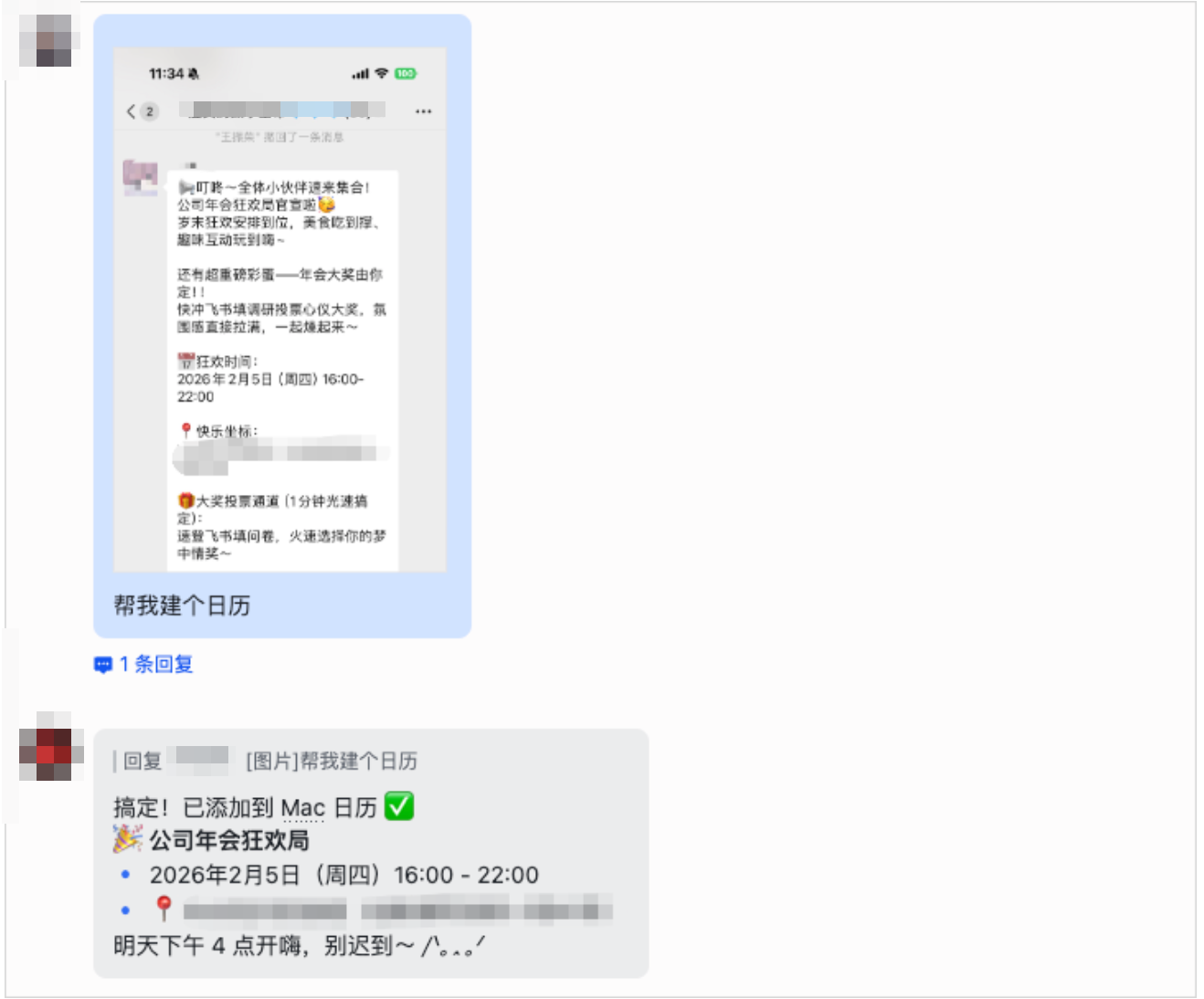
Viewing the result:
Open Mac Calendar and you'll see:
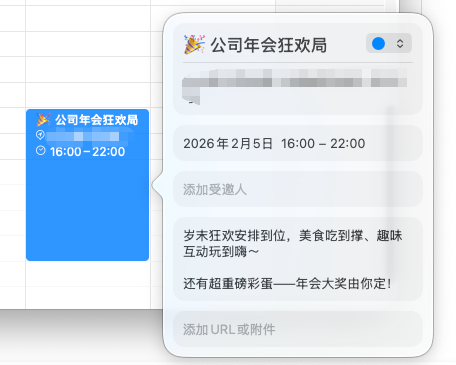
Tuesday, February 11, 2026

15:00-16:00  Discuss Project Plan
             📍 Meeting Room A
             👤 Zhang San
             📝 Remember to bring your laptop

             🔔 Reminder 15 minutes before
             🔔 Reminder 1 hour before
Open iPhone Calendar — the same content is automatically synced.
6.1.4 Practical Example 2: Complex Schedule Creation
Scenario: You received a meeting invitation email.
Email content:
Subject: 2026 Q1 Product Planning Meeting

Time: February 15, 2026 (Friday) 14:00-17:00
Location: HQ Building, 3rd Floor Conference Room
Attendees: All product team members
Agenda:
1. Q1 Product Review (30 minutes)
2. Q2 Product Planning (60 minutes)
3. Resource Allocation Discussion (60 minutes)
4. Summary & Action Items (30 minutes)

Please prepare in advance:
- Q1 Product Data Report
- Q2 Product Planning Draft
- Resource Requirements List
OpenClaw in action:
You: Help me create a calendar event based on this email
[Paste email content]

OpenClaw: Analyzing email content...

[Analysis complete]

OpenClaw: Detailed calendar event created!

📅 Event Details:
- Title: 2026 Q1 Product Planning Meeting
- Time: 2026-02-15 14:00-17:00 (3 hours)
- Location: HQ Building, 3rd Floor Conference Room
- Attendees: All product team members

Agenda:
1. 14:00-14:30 Q1 Product Review
2. 14:30-15:30 Q2 Product Planning
3. 15:30-16:30 Resource Allocation Discussion
4. 16:30-17:00 Summary & Action Items

Preparation Items:
✓ Q1 Product Data Report
✓ Q2 Product Planning Draft
✓ Resource Requirements List

Reminder Settings:
- 1 day before (prepare materials)
- 2 hours before (check preparations)
- 30 minutes before (head to the conference room)

Synced to Mac and iPhone Calendar ✅
6.1.5 Practical Example 3: Recurring Events
Scenario: You need to set up a weekly team meeting.
OpenClaw in action:
You: Help me create a recurring calendar event:
Every Monday at 10 AM, team weekly meeting, 1 hour, Meeting Room B

OpenClaw: Recurring event created!

📅 Event Details:
- Title: Team Weekly Meeting
- Time: Every Monday 10:00-11:00
- Location: Meeting Room B
- Recurrence: Weekly
- End: Indefinite (or specify an end date)

Reminder Settings:
- 15 minutes before

Created events for the next 12 weeks:
- 2026-02-10 (Monday) 10:00
- 2026-02-17 (Monday) 10:00
- 2026-02-24 (Monday) 10:00
- ... (12 occurrences total)

Synced to Mac and iPhone Calendar ✅
6.1.6 Calendar Templates and Best Practices
Common Calendar Templates:
Template 1: Meeting Event
Title: [Meeting Topic]
Time: [Date] [Start Time]-[End Time]
Location: [Meeting Room / Online Link]
Attendees: [Participants]
Agenda: [Meeting Agenda]
Preparation: [Materials to Prepare]
Reminders: 1 day before, 1 hour before, 15 minutes before
Template 2: Project Deadline
Title: [Project Name] - Deadline
Time: [Due Date] All Day
Priority: High
Reminders: 1 week before, 3 days before, 1 day before, morning of
Notes: [Deliverables Checklist]
Template 3: Personal Event
Title: [Event Name]
Time: [Date] [Time]
Location: [Location]
Reminders: 30 minutes before
Notes: [Related Information]
Best Practices:
- Consistent Naming Conventions
Meeting: [Meeting] Project Discussion
Task: [Task] Complete Report
Activity: [Activity] Team Building
Learning: [Learning] Tech Sharing- Set Reminders Wisely
Important meetings: 1 day, 1 hour, 15 minutes before
Regular meetings: 1 hour, 15 minutes before
Deadlines: 1 week, 3 days, 1 day before
Personal events: 30 minutes before- Add Detailed Information
- Meeting link (for online meetings)
- Room location (for in-person meetings)
- Attendee contact information
- Preparation materials checklist
- Related document links- Use Color Categories
Red: Urgent and important
Orange: Important but not urgent
Yellow: Urgent but not important
Green: Personal events
Blue: Learning and growth
6.2 WeChat Screenshot Recognition
6.2.1 Why You Need Screenshot Recognition
Real-world scenario:
You receive a message like this on WeChat:
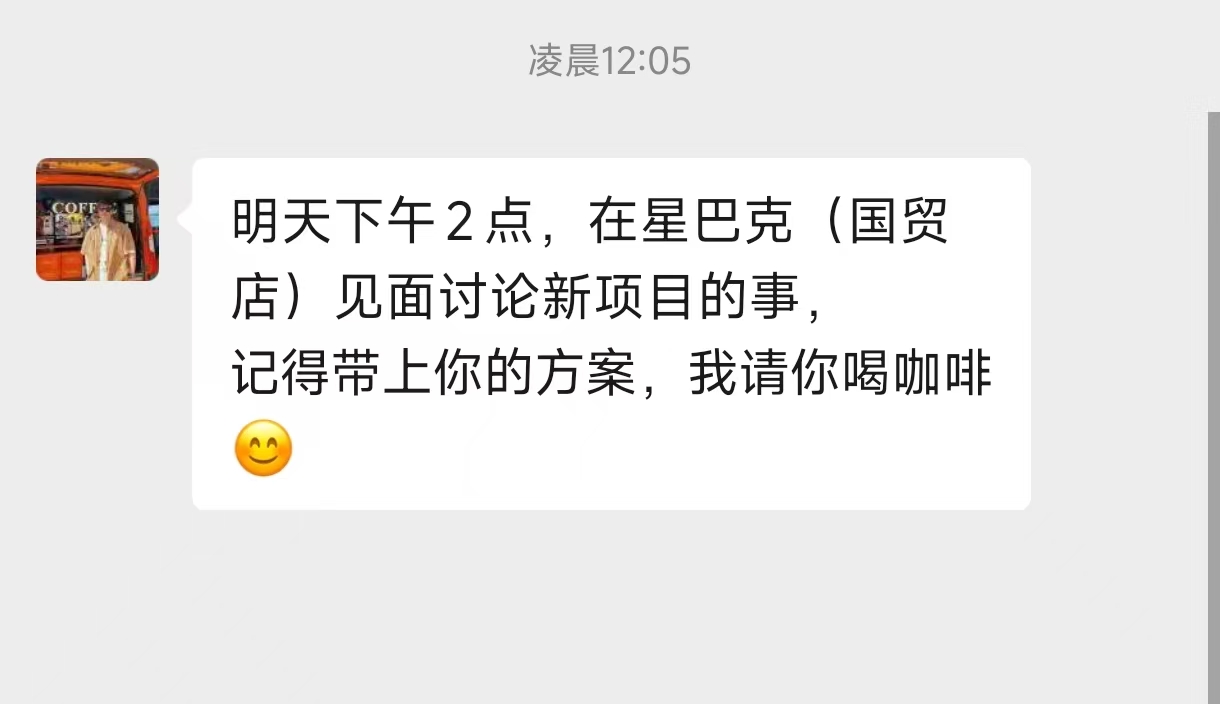
张三:明天下午2点,在星巴克(国贸店)见面讨论新项目的事,
记得带上你的方案,我请你喝咖啡😊
Traditional approach:
- See the message
- Remember the time and location
- Open the calendar
- Manually enter the information
- Set a reminder
Problems:
- ❌ Too many steps (5 steps)
- ❌ Easy to forget
- ❌ Information might be remembered incorrectly
- ❌ Low efficiency
The OpenClaw approach:
- Send a screenshot to OpenClaw
- Done!
6.2.2 Core Principles
OpenClaw's screenshot recognition workflow:
WeChat Screenshot → OCR Text Recognition → NLP Information Extraction → Create Calendar EventKey Technologies:
- OCR Recognition: Extracts text from screenshots
- Time Parsing: Recognizes natural language like "tomorrow at 2 PM"
- Location Extraction: Identifies "Starbucks (Guomao Store)"
- Person Recognition: Identifies "Zhang San"
- Event Extraction: Identifies "discuss the new project"
6.2.3 Practical Example 1: Simple Appointment
WeChat screenshot content:
李四:后天晚上7点,老地方吃饭?
你:好的!
OpenClaw in action:
You: [Send WeChat screenshot]
Help me create a calendar event

OpenClaw: Recognizing screenshot content...

[OCR recognition complete]

OpenClaw: Appointment information identified!

📅 Event Details:
- Title: Dinner with Li Si
- Time: 2026-02-12 19:00-20:30
- Location: The usual place (please confirm the exact address)
- Participant: Li Si

Reminder Settings:
- 2 hours before

Calendar event created ✅

💡 Tip: If "the usual place" has a specific address,
let me know and I'll update it in the calendar.
Adding the address:
You: The usual place is "Haidilao (Sanlitun Store)"

OpenClaw: Address updated!

📍 Location: Haidilao (Sanlitun Store)
📍 Address: No. 19 Sanlitun Road, Chaoyang District, Beijing

Synced to calendar ✅
6.2.4 Practical Example 2: Complex Meeting Arrangement
WeChat group chat screenshot:
Project Manager: @All Members
Next Wednesday at 9:30 AM, project kickoff meeting in the 5th floor
main conference room
Please make sure to attend, the meeting is expected to last 2 hours
Please prepare:
1. Project requirements document
2. Technical proposal
3. Timeline schedule

There will be a working lunch after the meeting
OpenClaw in action:
You: [Send group chat screenshot]
Help me create a calendar event

OpenClaw: Recognizing group chat content...

[Recognition complete]

OpenClaw: Meeting information identified!

📅 Event Details:
- Title: Project Kickoff Meeting
- Time: 2026-02-19 09:30-11:30 (2 hours)
- Location: 5th Floor Main Conference Room
- Attendees: All project team members

Preparation Items:
✓ Project requirements document
✓ Technical proposal
✓ Timeline schedule

Notes:
- Working lunch after the meeting
- Attendance is mandatory

Reminder Settings:
- 1 day before (prepare materials)
- 1 hour before
- 15 minutes before

Calendar event created ✅

💡 Tip: Lunch time from 11:30-13:00 has been automatically reserved
6.2.5 Practical Example 3: Batch Creation of Multiple Events
WeChat screenshot content:
This week's schedule:
Monday 10:00 - Team weekly meeting (Meeting Room A)
Wednesday 14:00 - Client visit (Client's office)
Friday 16:00 - Project retrospective (Online meeting)
OpenClaw in action:
You: [Send screenshot]
Help me batch create these calendar events

OpenClaw: Recognizing multiple events...

[Recognition complete]

OpenClaw: 3 events identified!

📅 Event 1: Team Weekly Meeting
- Time: 2026-02-10 10:00-11:00
- Location: Meeting Room A
✅ Created

📅 Event 2: Client Visit
- Time: 2026-02-12 14:00-15:30
- Location: Client's office (specific address needed)
✅ Created

📅 Event 3: Project Retrospective
- Time: 2026-02-14 16:00-17:00
- Location: Online meeting (meeting link needed)
✅ Created

All events synced to calendar ✅

💡 Tips:
- Client visit needs a specific address
- Project retrospective needs a meeting link
6.2.6 Optimizing Recognition Accuracy
Tips for improving recognition accuracy:
Tip 1: Clear screenshots
✅ Good screenshots:
- Clear text
- Good lighting
- Complete content

❌ Bad screenshots:
- Blurry
- Too dark
- Content cut off
Tip 2: Structured information
✅ Easy to recognize:
Time: Tomorrow at 3 PM
Location: Meeting Room A
Topic: Discuss the project

❌ Hard to recognize:
Tomorrow afternoon at that place to discuss that thing
Tip 3: Provide additional context
You: [Send screenshot]
This is about a meeting scheduled for tomorrow afternoon, at the office

OpenClaw: Got it! I'll use your additional context to improve recognition.
Tip 4: Confirm and correct
OpenClaw: Here's what I recognized:
Time: Tomorrow at 3 PM
Location: Meeting Room A

Can you confirm this is correct?

You: The time is right, but the location is Meeting Room B

OpenClaw: Got it, updated to Meeting Room B ✅
6.3 Batch Schedule Import
6.3.1 Why You Need Batch Import
Common scenarios:
-
New semester class schedule
- 10-20 courses
- Weekly recurrence
- Different classrooms
-
Project milestones
- Multiple key checkpoints
- Different owners
- Various deadlines
-
Meeting schedules
- Multiple meetings
- Different times and locations
- Different attendees
Traditional approach:
- Create them one by one manually
- Takes 1-2 hours
- Prone to errors
The OpenClaw approach:
- Prepare an Excel/CSV file
- One-click batch import
- Done in 5 minutes
6.3.2 Excel Schedule Import
Step 1: Prepare the Excel file
Create an Excel file (课程表.xlsx):
| Title | Date | Start Time | End Time | Location | Notes | Recurrence |
|---|---|---|---|---|---|---|
| Advanced Mathematics | 2026-02-10 | 08:00 | 09:40 | Teaching Building A101 | Prof. Wang | Every Monday |
| College English | 2026-02-10 | 10:00 | 11:40 | Teaching Building B203 | Prof. Li | Every Monday |
| Computer Fundamentals | 2026-02-11 | 14:00 | 15:40 | Lab Building C301 | Prof. Zhang | Every Tuesday |
| Physical Education | 2026-02-12 | 08:00 | 09:40 | Gymnasium | Prof. Liu | Every Wednesday |
Step 2: Import with OpenClaw
You: Help me import this class schedule to my calendar
[Upload 课程表.xlsx]

OpenClaw: Reading Excel file...

[Reading complete]

OpenClaw: 4 courses identified!

Creating calendar events...

✅ Advanced Mathematics (Every Monday 08:00-09:40)
✅ College English (Every Monday 10:00-11:40)
✅ Computer Fundamentals (Every Tuesday 14:00-15:40)
✅ Physical Education (Every Wednesday 08:00-09:40)

All courses for the semester created (16 weeks, 64 events total)

Reminder Settings:
- 15 minutes before each class

Synced to Mac and iPhone Calendar ✅
6.3.3 CSV Format Handling
CSV file example (项目里程碑.csv):
标题,日期,时间,地点,负责人,优先级
需求评审,2026-02-15,14:00-16:00,会议室A,张三,高
设计评审,2026-02-20,10:00-12:00,会议室B,李四,高
开发完成,2026-03-01,全天,无,王五,高
测试完成,2026-03-10,全天,无,赵六,中
上线发布,2026-03-15,09:00-18:00,机房,张三,高
Import with OpenClaw:
You: Help me import the project milestones
[Upload 项目里程碑.csv]

OpenClaw: Reading CSV file...

[Reading complete]

OpenClaw: 5 milestones identified!

📅 Requirements Review
- Time: 2026-02-15 14:00-16:00
- Owner: Zhang San
- Priority: High
✅ Created

📅 Design Review
- Time: 2026-02-20 10:00-12:00
- Owner: Li Si
- Priority: High
✅ Created

📅 Development Complete
- Time: 2026-03-01 All Day
- Owner: Wang Wu
- Priority: High
✅ Created

📅 Testing Complete
- Time: 2026-03-10 All Day
- Owner: Zhao Liu
- Priority: Medium
✅ Created

📅 Production Release
- Time: 2026-03-15 09:00-18:00
- Owner: Zhang San
- Priority: High
✅ Created

All milestones synced to calendar ✅

Reminder Settings:
- High priority: 1 week, 3 days, 1 day before
- Medium priority: 3 days, 1 day before
6.3.4 Batch Event Creation
Scenario: You need to create a series of meetings.
OpenClaw in action:
You: Help me create the following meetings:

1. Every Monday at 10:00, team weekly meeting, Meeting Room A, 1 hour
2. Every Wednesday at 14:00, tech sharing, Meeting Room B, 2 hours
3. Every Friday at 16:00, project retrospective, online meeting, 1 hour

Starting next week, for 12 weeks

OpenClaw: Batch creating meetings...

[Creating...]

OpenClaw: Batch creation complete!

📊 Creation Summary:
- Team Weekly Meeting: 12 occurrences
- Tech Sharing: 12 occurrences
- Project Retrospective: 12 occurrences
- Total: 36 events

Date Range:
- Start: 2026-02-17
- End: 2026-05-09

Reminder Settings:
- All meetings: 15 minutes before

Synced to Mac and iPhone Calendar ✅

💡 Tip: You can individually modify any single meeting in the calendar
6.3.5 Data Validation and Error Handling
OpenClaw's smart validation:
Validation 1: Time Conflict Detection
OpenClaw: ⚠️ Time conflict detected!

Conflicting events:
- 2026-02-15 14:00 Requirements Review (Meeting Room A)
- 2026-02-15 14:30 Client Visit (Client's Office)

Suggestions:
1. Reschedule Requirements Review to 15:00
2. Reschedule Client Visit to 16:00
3. Cancel one of them

Please choose how to proceed:
Validation 2: Date Format Errors
OpenClaw: ⚠️ Date format errors found!

Error rows:
- Row 3: Date "2026/02/30" is invalid (February doesn't have 30 days)
- Row 5: Time "25:00" is invalid (exceeds 24 hours)

Auto-corrected:
- Row 3: Changed to "2026-03-01"
- Row 5: Changed to "23:00"

Can you confirm these corrections are correct?
Validation 3: Missing Required Fields
OpenClaw: ⚠️ Missing required fields found!

Missing information:
- Row 2: Missing "Title"
- Row 4: Missing "Date"

Suggestions:
1. Fill in the missing information
2. Skip these rows
3. Use default values

Please choose how to proceed:
6.4 Reminder Setup Tips
6.4.1 Reminder Types and Timing
Reminder Types:
-
Time-based Reminders
- X minutes/hours/days before
- At the exact time
- Delayed reminders
-
Location-based Reminders
- Remind when arriving at a location
- Remind when leaving a location
-
Recurring Reminders
- Daily/Weekly/Monthly
- Custom intervals
Choosing Reminder Timing:
Different types of events require different reminder strategies, as shown in Table 6-1.
Table 6-1: Recommended Reminder Timing for Different Event Types
| Event Type | Recommended Timing | Reason |
|---|---|---|
| Important meetings | 1 day, 1 hour, 15 min before | Thorough preparation |
| Regular meetings | 1 hour, 15 min before | Arrive on time |
| Project deadlines | 1 week, 3 days, 1 day before | Avoid procrastination |
| Daily tasks | 30 min before | Don't interrupt workflow |
| Appointments | 2 hours, 30 min before | Allow preparation time |
| Classes | 15 min before | Arrive on time |
6.4.2 Multi-Level Reminder Setup
Scenario: An important project deadline.
OpenClaw in action:
You: Help me set up reminders for a project deadline:
March 15, 2026, product launch

OpenClaw: Sure, let me set up multi-level reminders!

📅 Event: Product Launch
⏰ Date: 2026-03-15

Reminder Settings:

🔔 Level 1 Reminder (2 weeks before)
- Time: 2026-03-01 09:00
- Message: 2 weeks until product launch, start the final sprint
- Action: Check progress, confirm resources

🔔 Level 2 Reminder (1 week before)
- Time: 2026-03-08 09:00
- Message: 1 week until product launch, countdown begins
- Action: Complete testing, prepare launch plan

🔔 Level 3 Reminder (3 days before)
- Time: 2026-03-12 09:00
- Message: 3 days until product launch, final checks
- Action: Confirm launch process, prepare rollback plan

🔔 Level 4 Reminder (1 day before)
- Time: 2026-03-14 09:00
- Message: Product launches tomorrow, get ready
- Action: Team rally, confirm on-call schedule

🔔 Level 5 Reminder (morning of)
- Time: 2026-03-15 08:00
- Message: Product launches today, let's go!
- Action: Final checks, prepare for launch

5-level reminders set ✅
6.4.3 Smart Reminder Strategies
OpenClaw's smart reminders:
Strategy 1: Based on event importance
You: Help me create an important meeting:
Tomorrow at 3 PM, board meeting

OpenClaw: Detected "board meeting" —
this is a high-importance meeting. Suggested reminders:

🔔 1 day before (prepare materials)
🔔 2 hours before (check preparations)
🔔 30 minutes before (head to the meeting room)
🔔 10 minutes before (final confirmation)

Would you like to use this reminder plan?
Strategy 2: Based on location distance
You: Help me create a calendar event:
Tomorrow at 2 PM, meeting at the client's office

OpenClaw: Detected an off-site meeting.
Based on location distance (~30 min drive), suggested reminders:

🔔 2 hours before (prepare to leave)
🔔 1 hour before (confirm route)
🔔 30 minutes before (leave now)

Travel time automatically calculated ✅
Strategy 3: Based on preparation needs
You: Help me create a calendar event:
Next Monday at 10 AM, product demo

OpenClaw: Detected a demo presentation. Suggested reminders:

🔔 3 days before (prepare demo materials)
🔔 1 day before (rehearse the demo flow)
🔔 2 hours before (check equipment)
🔔 30 minutes before (head to the meeting room)

Preparation Checklist:
✓ Demo slides
✓ Product demo
✓ Backup plan
✓ Projection equipment

Reminders and checklist created ✅
6.4.4 Integration with Other Tools
Integration 1: Feishu (Lark) Reminders
You: Sync calendar reminders to Feishu

OpenClaw: Feishu reminders configured!

Reminder Channels:
- Calendar reminders (Mac/iPhone)
- Feishu message reminders
- Feishu calendar sync

Example:
When "tomorrow's 3 PM meeting" triggers 1 hour before:
1. Mac Notification Center popup ✅
2. iPhone lock screen notification ✅
3. Feishu message reminder ✅

Synced to Feishu ✅
Integration 2: WeCom (Enterprise WeChat) Reminders
You: Send important meeting reminders to WeCom

OpenClaw: WeCom reminders configured!

Reminder Rules:
- Meetings marked as "important"
- Send WeCom messages 1 day and 1 hour before

Message Format:
📅 Important Meeting Reminder
Title: [Meeting Name]
Time: [Meeting Time]
Location: [Meeting Location]
Preparation: [Preparation Items]

Configuration complete ✅
Integration 3: Email Reminders
You: Send me email reminders for project deadlines

OpenClaw: Email reminders configured!

Reminder Rules:
- All deadline events
- Send emails 1 week, 3 days, and 1 day before

Email Content:
Subject: [Project Name] Deadline Reminder
Body:
- Due date
- Days remaining
- Completion progress
- Suggested actions

Configuration complete ✅
6.4.5 Reminder Management Tips
Tip 1: Avoid Reminder Fatigue
❌ Bad practices:
- Setting multiple reminders for every event
- Reminders too close together
- Generic reminder content for everything

✅ Good practices:
- More reminders for important events, fewer for routine ones
- Space reminders out reasonably
- Personalize reminder content
Tip 2: Optimize Reminder Content
❌ Generic reminder:
"Meeting reminder: Meeting in 15 minutes"

✅ Optimized reminder:
"📅 Product Review Meeting
⏰ In 15 minutes (14:45)
📍 Meeting Room A (3rd Floor)
👤 Attendees: Product Team
📝 Bring: Product proposal, data report"
Tip 3: Reminder Priority Levels
🔴 High Priority (handle immediately)
- Important meetings (10 minutes before)
- Urgent tasks (same day)
- Client appointments (30 minutes before)

🟡 Medium Priority (handle soon)
- Regular meetings (15 minutes before)
- Routine tasks (1 day before)
- Team activities (2 hours before)

🟢 Low Priority (handle when free)
- Study plans (1 day before)
- Personal events (30 minutes before)
- Hobby activities (2 hours before)
Tip 4: Optimize Reminder Timing
Adjust based on personal habits:

Early riser (wakes at 7:00):
- Morning reminder: 08:00
- Midday reminder: 12:00
- Evening reminder: 19:00

Night owl (wakes at 9:00):
- Morning reminder: 10:00
- Midday reminder: 14:00
- Evening reminder: 21:00

Weekdays vs Weekends:
- Weekdays: 1 hour before
- Weekends: 2 hours before (more relaxed)
📝 Chapter Summary
This chapter covered OpenClaw's schedule and task management features:
Core Features
-
Automatic Calendar Creation
- Text recognition and creation
- Complex schedule handling
- Recurring event setup
- Calendar template usage
-
WeChat Screenshot Recognition
- OCR text recognition
- Smart information extraction
- Batch event creation
- Recognition accuracy optimization
-
Batch Schedule Import
- Excel file import
- CSV format handling
- Data validation
- Error handling
-
Reminder Setup Tips
- Multi-level reminders
- Smart reminder strategies
- Tool integration
- Reminder management optimization
Practical Tips
- ✅ Consistent naming conventions
- ✅ Set reminders wisely
- ✅ Add detailed information
- ✅ Use color categories
- ✅ Avoid reminder fatigue
- ✅ Optimize reminder content
Next Steps
- Learn Chapter 7: Automation Workflows
- Master scheduled task setup
- Implement website monitoring
- Build automation systems
🎯 Hands-on Exercises
Exercise 1: Create This Week's Schedule
- List all your arrangements for this week
- Use OpenClaw to create calendar events
- Set appropriate reminders
- Check on your phone
Exercise 2: WeChat Screenshot Recognition
- Find a WeChat appointment message
- Send a screenshot to OpenClaw
- Let it create a calendar event
- Verify recognition accuracy
Exercise 3: Batch Import a Class Schedule
- Prepare an Excel class schedule
- Use OpenClaw to batch import
- Check all events
- Adjust reminder settings
💡 FAQ
Q1: Calendar event creation failed? A: Check Mac Calendar permissions and make sure OpenClaw has access.
Q2: Screenshot recognition is inaccurate? A: Make sure the screenshot is clear with complete text. Manually supplement information if needed.
Q3: Batch import errors? A: Check the Excel format and ensure date/time formats are correct.
Q4: Not receiving reminders? A: Check notification settings and make sure Mac and iPhone notification permissions are enabled.
Q5: How to delete batch-created events? A: Select the events in the calendar and batch delete them, or ask OpenClaw to delete them for you.
Next Chapter Preview: Chapter 7 will cover automation workflows, including scheduled task setup, website monitoring in practice, automated daily report delivery, and other advanced features.