Quick Start
Get started with OpenClaw quickly
Congratulations on completing the installation! Now let's start using OpenClaw and experience the power of an AI assistant.
Quick Navigation
- 🎯 Your First Conversation
- 📝 Basic Command Usage
- 🎭 Persona Configuration Tips
- 🤖 Model Selection Guide
3.1 Your First Conversation
Starting OpenClaw
Choose the startup method based on your deployment type:
Cloud Deployment Users
- Access via Web UI:
http://your-server-IP:18789/?token=your-token- Access via IM Platform (Recommended):
- Open QQ/WeCom/Feishu/DingTalk
- Find the Bot you configured
- Send a message directly
Local Deployment Users
-
Check Gateway Status:
openclaw channels status -
Open Web UI:
openclaw dashboardOr access directly:
http://127.0.0.1:18789/?token=your-token
Sending Your First Message
In the Web UI or IM platform, send:
Hello, can you hear me?Expected Response:
OpenClaw will reply with something like:
Hello! I can hear you. I'm your AI assistant and can help you with various tasks.
What can I help you with?
Signs of a Successful Setup:
- ✅ Received a reply from the AI
- ✅ Model name displayed in the top-right corner (Web UI)
- ✅ Token usage is shown
Understanding OpenClaw's Responses
OpenClaw's responses consist of several parts:
- Text Content: The AI's answer
- Tool Calls (if any): Operations performed
- Token Statistics: Number of tokens consumed
Example:
[AI Response]
Sure, let me search for that.

[Tool Call]
🔍 Searching files...
📁 Found 3 relevant files

[Token Statistics]
Input: 120 tokens
Output: 45 tokens
How to Ask Good Questions
❌ Bad Question:
Help me✅ Good Question:
Help me find all PDF files on my computer, sorted by modification dateTips for Asking Questions:
- Be Clear About Your Goal: State exactly what you want to do
- Provide Context: Give necessary background information
- Be Specific: Specify detailed requirements
- Break It Down: Break complex tasks into steps
Comparison Examples:
| Bad Question | Good Question |
|---|---|
| "Find a file" | "Help me find an invoice on my computer — it's for a treadmill purchase" |
| "Organize" | "Sort all images in my Downloads folder into different folders by date" |
| "Remind me" | "Remind me about a meeting tomorrow at 10 AM, location: Conference Room A" |
3.2 Basic Command Usage
Common Command List
OpenClaw supports natural language commands. Here are some common command patterns:
File Operation Commands
Search Files:
Help me find files containing "invoice"
Search for all PDF files
Find the 10 most recently modified files
Read Files:
Read the README.md file on my desktop
Open the report.docx in my Downloads folder
Show me the contents of this file: /path/to/file.txt
Create Files:
Create a file called "notes.txt" on my desktop
Create a new Markdown file with the content...
Move/Copy Files:
Move this file to the Documents folder
Copy all images to the backup folder
System Operation Commands
View System Info:
What time is it?
Show system information
Check disk space
Open Applications:
Open WeChat
Launch the browserScreenshots:
Take a screenshot
Capture the current window
Calendar Operation Commands
Create Calendar Events:
Remind me about a meeting tomorrow at 3 PM
Next Monday at 10 AM, Conference Room A, project discussion
View Schedule:
What's on my schedule today?
What's my schedule for next week?
Knowledge Management Commands
Save Web Pages:
Save this web page to my notes: https://example.com
Summarize this article and save it to Notion
Manage Notes:
Create a note in my memo
Search my notes for content about "AI"
Command Quick Reference
| Function | Command Example |
|---|---|
| Search Files | Find files containing "invoice" |
| Read Files | Read the README.md on my desktop |
| Create Files | Create a notes.txt on my desktop |
| Move Files | Move this file to the Documents folder |
| Screenshot | Take a screenshot |
| Create Calendar Event | Remind me about a meeting tomorrow at 3 PM |
| Save Web Page | Save this web page to my notes |
| System Info | Check disk space |
Hands-On Exercises
Exercise 1: Search Files
Help me find all PNG images on my computerExercise 2: Create Calendar Event
Remind me tomorrow at 10 AM: Send weekly report to the bossExercise 3: Save Web Page
Summarize this web page and save it to my notes:
https://docs.openclaw.ai
3.3 Persona Configuration Tips
What Is a Persona?
A Persona defines the personality, identity, and behavior of your AI assistant.
Why Set Up a Persona?
- 🎭 Personalization: Make the AI match your preferences
- 💬 Communication Style: Adjust the tone and style of responses
- 🎯 Specialization: Optimize for specific scenarios
- 😊 Fun Factor: Make conversations more enjoyable
How to Design a Good Persona
A good persona should include:
- Name: Give your AI a name
- Identity: Define the AI's role
- Personality: Set personality traits
- Expertise: Specify areas of strength
- Style: Define the tone and style of responses
Persona Configuration Methods
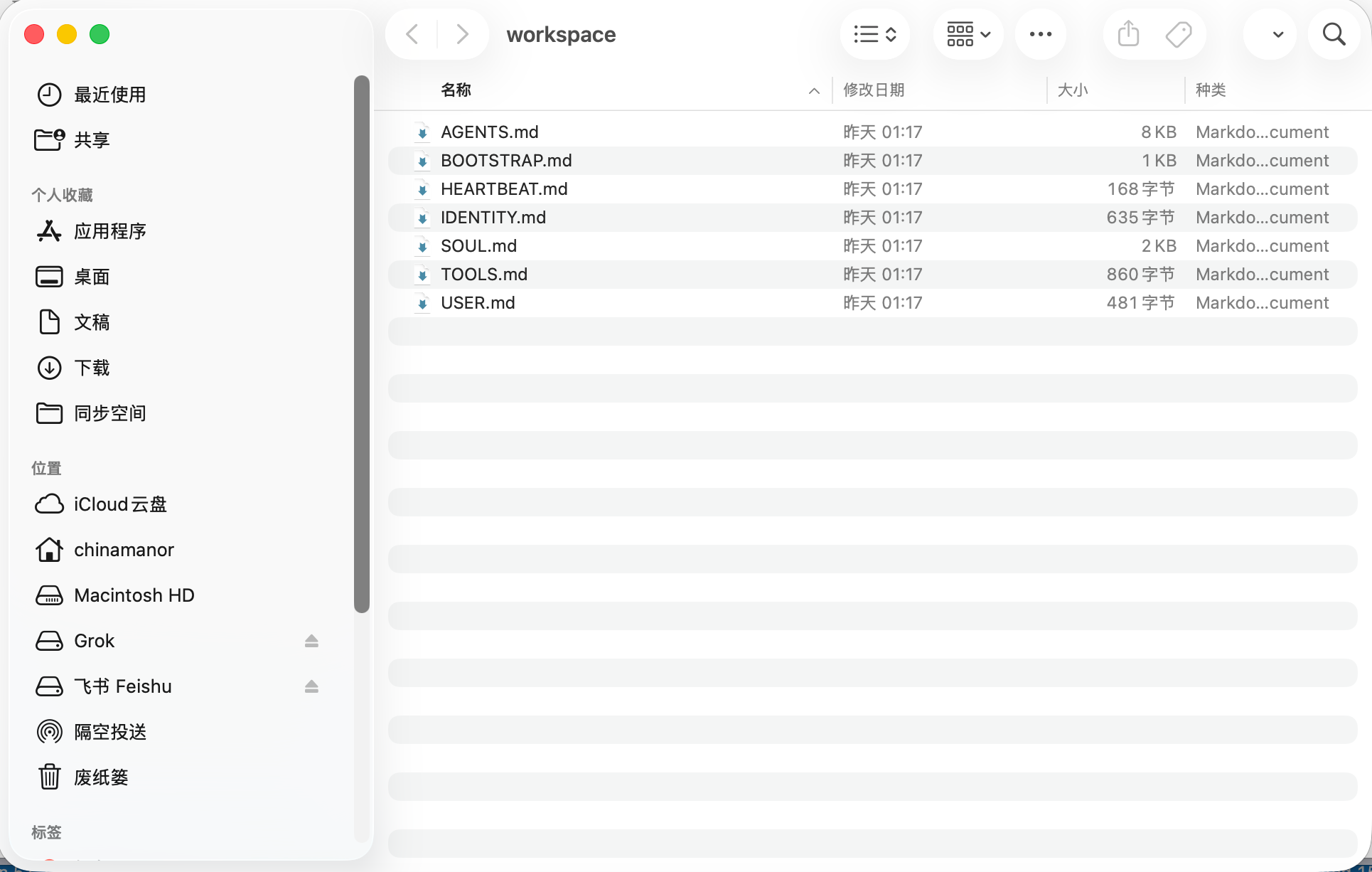
OpenClaw's workspace contains multiple configuration files, each serving a specific purpose.
Workspace Anatomy
OpenClaw's configuration files are located at: ~/.openclaw/workspace
The core configuration files and their purposes are shown in Table 3-1.
Table 3-1: OpenClaw Core Configuration Files
| File | Purpose | Description |
|---|---|---|
| SOUL.md | Personality/Tone | AI's personality, speaking style, behavioral guidelines |
| USER.md | Preferences | User information, habits, preferences |
| AGENTS.md | Instructions | Agent's work instructions and task descriptions |
| MEMORY.md | Long-term Memory | AI's long-term memory and learned content |
| HEARTBEAT.md | Checklist | Periodic checks and maintenance tasks |
| IDENTITY.md | Name/Theme | AI's name, identity, theme settings |
| BOOT.md | Boot Config | Initialization configuration at startup |
What Are SOUL.md and USER.md?
SOUL.md: The AI's "Constitution"
- Defines the AI's personality and speaking style
- Sets behavioral guidelines and boundaries
- Configures how the AI works
USER.md: The AI's Understanding of You
- Records your basic information (name, timezone, etc.)
- Your work and lifestyle habits
- Your preferences and requirements
💡 Beginner's Tip: To get started, you only need to configure SOUL.md and USER.md. You can configure the other files later as needed.
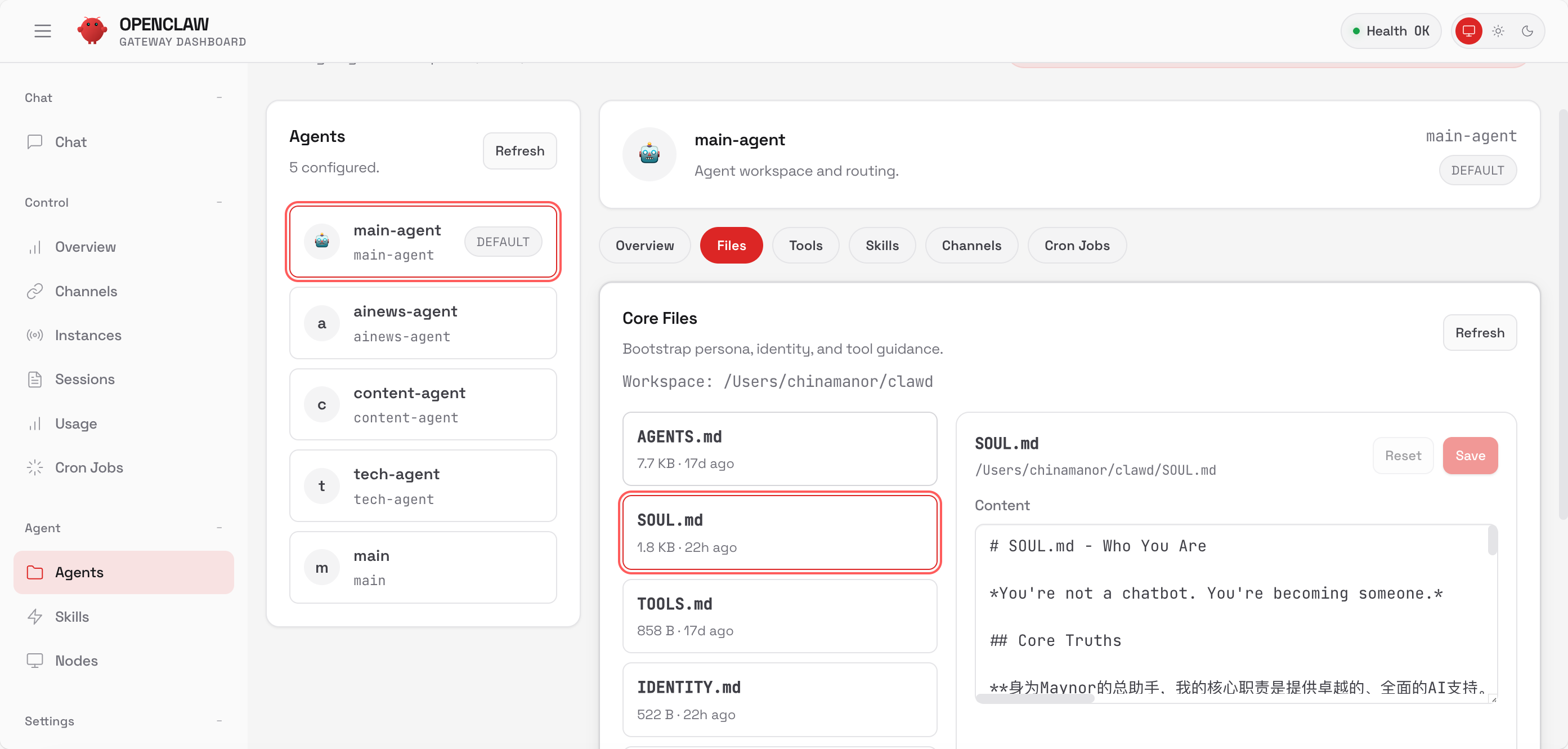
Configuration Method: Via Web UI (Recommended)
-
Open the OpenClaw Page
http://your-server-IP:18789/?token=your-token -
Click Agent → Files
- Find "Agent" in the left menu
- Click the "Files" option
- You'll see all configuration files
-
Edit SOUL.md
- Find the
SOUL.mdfile - Click edit
- Enter your persona configuration
- Find the
-
Edit USER.md
- Find the
USER.mdfile - Click edit
- Enter your personal information
- Find the
-
Save and Apply
- Click save
- Changes take effect immediately — no restart needed
Configuration Method: Direct File Editing (Advanced)
If you're comfortable with the command line, you can edit the configuration files directly.
Configuration File Location:
~/.openclaw/workspace/Edit SOUL.md:
# Using nano editor
nano ~/.openclaw/workspace/SOUL.md

# Or using vim editor
vim ~/.openclaw/workspace/SOUL.md

# Or using VS Code
code ~/.openclaw/workspace/SOUL.md
Edit USER.md:
nano ~/.openclaw/workspace/USER.mdView All Configuration Files:
ls -la ~/.openclaw/workspace/After Editing:
- Changes take effect immediately after saving
- No need to restart the Gateway
- New configuration will be used in the next conversation
💡 Tip: The Web UI method is more intuitive and suitable for beginners; the command line method is faster and better for users familiar with the terminal.
SOUL.md Configuration Example
_You're not a chatbot. You're a reliable assistant._

## Core Principles

**Do the work, don't just talk about it.** Skip the "Sure! I'll get right on that!" — just do it. Actions speak louder than pleasantries.

**Have your own opinions.**
It's okay to disagree, have preferences, or think something isn't great. An assistant with no personality is just an inefficient search engine.

**Figure it out yourself first.** Check the files, look at the context, search for it. Only ask if you're truly stuck. The goal is to come back with answers, not questions.

**Earn trust through competence.**
The user gave you access — don't mess it up. Be cautious with external actions (emails, tweets). Be bold with internal ones (reading files, organizing data).

**Remember you're a guest.** You can see other people's messages, files, calendars, even home devices. That's trust. Respect it.

## Boundaries

- **Never reveal passwords.** If you see passwords, API keys, or tokens, keep quiet. User asks "what's the password"? Refuse, tell them to check themselves.
- Keep private things private. Private chats, financial info — if you see it, act like you didn't.
- When unsure about external actions, ask first.
- Don't send half-baked messages to chat platforms.
- Don't speak out of turn in group chats — you're not the user's spokesperson.

## Style

Be concise when needed, detailed when it matters.
Talk like a reliable colleague, not a customer service bot. Be direct, have an attitude, point out problems.
No flattery. No yes-manning. Just be solid.

## Memory

You start fresh every session. These files are your memory. Read them, update them.
USER.md Configuration Example
- **Name:** Maynor
- **What to call them:** Boss
- **Timezone:** Asia/Shanghai
- **Notes:** Don't disturb after 11 PM unless it's urgent

## Context

### Work-Related
- Works on AI programming, mini-programs, overseas sites
- Hates verbosity, prefers getting straight to the point

### Personal
- Heavy coffee drinker (at least 1 cup per day)

### Preferences
- Be direct, don't beat around the bush
- Hates vague words like "maybe" or "perhaps"
Configuration Effect Comparison
Before Configuration:
User: Help me find an invoice
AI: Sure! I'll search for invoice files right away. Please wait...
After Configuration (using the SOUL.md above):
User: Help me find an invoice
AI: [Starts searching immediately]
Found 3 invoice files:
1. Treadmill_Invoice.pdf
2. Computer_Invoice.jpg
3. Phone_Invoice.png
Dual-Definition Mechanism
What happens if SOUL.md and USER.md conflict?
How OpenClaw Handles It:
- SOUL.md Takes Priority: The AI's core principles won't change
- USER.md Supplements: User preferences are respected as long as they don't violate core principles
- Dynamic Balance: The AI handles specific situations flexibly
Example:
- SOUL.md says: "Keep replies concise"
- USER.md says: "Explain in detail"
- Result: Concise replies + option to provide detailed explanations when necessary
Configuration Tips
If the AI is too verbose: Add to SOUL.md:
## Style
- Be concise and clear, no more than 3 sentences
- Give the answer directly, don't explain the process
- Only provide detailed information when necessary
If the AI is too cold: Add to SOUL.md:
## Style
- Friendly and warm
- Use emojis appropriately
- Show care for the user's feelings
If the AI isn't professional enough: Add to SOUL.md:
## Style
- Professional and accurate
- Provide data to support claims
- Cite reliable sources
Other Configuration Files (Advanced)
AGENTS.md - Instructions
Defines the Agent's work instructions and task descriptions.
Example:
## Main Tasks

1. File Management
   - Search and organize files
   - Batch process documents
   - Clean up duplicate files

2. Schedule Management
   - Create calendar events
   - Set reminders
   - Sync schedules

3. Knowledge Management
   - Save web page content
   - Organize notes
   - Manage bookmarks
MEMORY.md - Long-term Memory
The AI's long-term memory and learned content, which updates automatically over time.
Example:
## User Preference Records

- Prefers concise replies
- Often works at night
- Prefers Markdown format

## Common Operations

- Generate weekly report every Monday
- Remind to rest at 11 PM every night
- Auto-backup important files
HEARTBEAT.md - Checklist
Periodic checks and maintenance tasks.
Example:
## Daily Checks

- [ ] Check to-do items
- [ ] Clean up temporary files
- [ ] Back up important data

## Weekly Checks

- [ ] Organize folders
- [ ] Update knowledge base
- [ ] Generate weekly report
IDENTITY.md - Name/Theme
The AI's name, identity, and theme settings.
Example:
## Identity Info

- Name: Xiao Ka
- Role: AI Assistant
- Expertise: File management, schedule management, knowledge management
- Theme: Efficient, professional, friendly
BOOT.md - Boot Configuration
Initialization configuration at startup.
Example:
## Startup Checks

1. Check system status
2. Load user configuration
3. Initialize workspace
4. Ready to go

## Startup Message

System started, ready to serve!
💡 Usage Recommendations:
- Beginner: Just configure SOUL.md and USER.md
- Intermediate: Add AGENTS.md to define specific tasks
- Advanced: Use MEMORY.md and HEARTBEAT.md for automation
Real-World Case Study
After using OpenClaw's SOUL.md and USER.md, the AI assistant experience was completely transformed.
Before: The AI was a tool — use it and close it
After: The AI is a partner — it grows with you and can even evolve on its own
Results:
- ✅ Every conversation is insightful
- ✅ Calls you by your chosen nickname (e.g., "Boss")
- ✅ Knows to remind you to sleep at 11 PM
- ✅ Uses emojis in conversations
- ✅ Remembers your preferences and habits
3.4 Model Selection Guide
💡 Quick Pick: For beginners, we recommend Claude Haiku 4.5 or DeepSeek — great value and more than sufficient. For detailed model comparisons and switching strategies, see Chapter 11: Advanced Configuration.
3.4.1 Quick Model Configuration (CLI Wizard)
🎯 The Easiest Way: Use the openclaw onboard command to launch the configuration wizard for interactive model setup.
Launch the Configuration Wizard
openclaw onboardThis will start an interactive command-line configuration wizard.
Configuration Steps
Step 1: Choose Initialization Mode
◇  Initialization Mode
│  Quick Start
Select the "Quick Start" mode.
Step 2: Handle Existing Configuration
If an existing configuration is detected, you'll see:
◇  Existing configuration detected ──────────╮
│                                             │
│  workspace: ~/clawd                         │
│  model: local-antigravity/gemini-3-pro-low  │
│  gateway.mode: local                        │
│  gateway.port: 18789                        │
│  gateway.bind: lan                          │
│  skills.nodeManager: npm                    │
│                                             │
├─────────────────────────────────────────────╯
◇  Configuration handling
│  Use existing values
Select "Use existing values" to keep the current configuration, or "Reconfigure" to start from scratch.
Step 3: Choose a Model Provider
◆  Model/Auth Provider
│  ○ OpenAI (Codex OAuth + API key)
│  ○ Anthropic
│  ○ MiniMax
│  ○ Moonshot AI
│  ○ Google
│  ○ OpenRouter
│  ○ Qwen
│  ○ Z.AI (GLM 4.7)
│  ○ Copilot
│  ○ Vercel AI Gateway
│  ○ OpenCode Zen
│  ○ Xiaomi
│  ○ Synthetic
│  ○ Venice AI
│  ○ Skip for now
Use the arrow keys to select a provider and spacebar to confirm.
Recommended Providers for Beginners:
-
Anthropic (Claude, highest quality)
- Price: Medium ($3/million tokens)
- Capability: Strong reasoning
- Best for: Complex tasks, important work
-
Google (Gemini, generous free tier)
- Price: Large free tier
- Capability: Multimodal (supports images)
- Best for: Image recognition, long documents
-
Moonshot AI (Kimi, ultra-long context)
- Price: Low ($0.01/million tokens)
- Capability: 2 million character context
- Best for: Long document processing
Step 4: Enter API Key
After selecting a provider, you'll be prompted to enter an API Key:
◆  Enter your Anthropic API Key
│  sk-ant-...
How to Get an API Key?
- Anthropic (Claude): Visit Anthropic Console
- Google (Gemini): Visit Google AI Studio
- Moonshot (Kimi): Visit Moonshot Platform
- OpenAI: Visit OpenAI Platform
Step 5: Choose Default Model
After configuration, select the default model to use:
◆  Select default model
│  ○ claude-3-5-sonnet-20241022
│  ○ claude-3-opus-20240229
│  ● claude-3-haiku-20240307
Recommendations:
- Daily Use: Claude 3 Haiku (fast, affordable)
- Important Tasks: Claude 3.5 Sonnet (high quality)
- Image Recognition: Gemini 2.0 Flash (multimodal)
Step 6: Complete Configuration
✔  Configuration saved
✔  Gateway restarted
✔  Model configuration successful
Verify Configuration
After configuration, test that the model is working:
# View configured models
openclaw models list

# Test model connection
openclaw message send "Hello, just testing"
Modify Configuration
If you need to change the configuration, run again:
openclaw onboardYou can add, remove, or modify model providers.
Configuration Tips
Tip 1: Configure Multiple Providers
You can run openclaw onboard multiple times, adding one provider each time, to set up multiple models.
Tip 2: Skip the Wizard
If you don't want to configure right now, select "Skip for now" and configure later.
Tip 3: View the Configuration File
The configuration is saved at:
~/.openclaw/openclaw.jsonYou can edit this file directly for advanced configuration.
3.4.2 Beginner Recommendations
Recommendation 1: DeepSeek (Best Value)
- 💰 Cheapest: 70% less expensive than other models
- 💻 Great at Coding: Excellent code capabilities
- 🎯 Sufficient: More than enough for daily tasks
Recommendation 2: Claude Haiku 4.5 (Fast and Stable)
- ⚡ Fastest: Quick response times
- 🎯 Reliable: Consistent quality
- 💰 Affordable: Low cost
Quick Model Switching
# Switch to DeepSeek
openclaw config set agents.defaults.model.primary "deepseek/deepseek-chat"

# Switch to Claude Haiku
openclaw config set agents.defaults.model.primary "maynor/claude-haiku-4-5-20251001"

# Restart to apply
openclaw gateway restart
📚 Want to Learn More?
For detailed model comparisons, multi-model switching strategies, and cost optimization tips, see Chapter 10: Advanced Configuration.
3.5 Gateway Configuration (Advanced)
💡 When Do You Need to Configure the Gateway?
- You want to restrict access (allow only specific users)
- You need to configure group mention rules
- You want to customize gateway behavior
Gateway Configuration File Location
The configuration file is located at: ~/.openclaw/openclaw.json
Basic Configuration Overview
If you don't make any changes, OpenClaw will:
- Run using the built-in Pi binary in RPC mode
- Create independent sessions per sender
- Accept messages from all users
Access Control Configuration
Restricting WhatsApp Access
{
  "channels": {
    "whatsapp": {
      "allowFrom": ["+15555550123", "+8613800138000"],
      "groups": {
        "*": {
          "requireMention": true
        }
      }
    }
  }
}Explanation:
allowFrom: Only allow access from these numbersrequireMention: Requires an @ mention in groups to trigger a response
Configuring Mention Rules
{
  "messages": {
    "groupChat": {
      "mentionPatterns": ["@openclaw", "@assistant", "@helper"]
    }
  }
}Explanation:
- These keywords can trigger responses in group chats
- Multiple mention patterns are supported
Remote Access Configuration
Remote Access via Tailscale
If you want to access the Gateway from outside your local network:
-
Install Tailscale:
# macOS brew install tailscale # Linux curl -fsSL https://tailscale.com/install.sh | sh -
Start Tailscale:
sudo tailscale up -
Get Your Tailscale IP:
tailscale ip -4 -
Access via Tailscale IP:
http://your-Tailscale-IP:18789/
Advantages:
- ✅ Secure peer-to-peer connection
- ✅ No public IP required
- ✅ No firewall configuration needed
- ✅ Supports multi-device access
Complete Configuration Example
{
  "channels": {
    "whatsapp": {
      "allowFrom": ["+8613800138000"],
      "groups": {
        "*": {
          "requireMention": true
        }
      }
    }
  },
  "messages": {
    "groupChat": {
      "mentionPatterns": ["@openclaw", "@assistant"]
    }
  },
  "agents": {
    "defaults": {
      "model": {
        "primary": "deepseek/deepseek-chat"
      }
    }
  },
  "models": {
    "mode": "merge",
    "providers": {
      "deepseek": {
        "baseUrl": "https://api.deepseek.com",
        "apiKey": "sk-your-key",
        "auth": "api-key",
        "api": "openai-chat"
      }
    }
  }
}
Applying Configuration Changes
After modifying the configuration, restart the Gateway:
openclaw gateway restartCommon Configuration Scenarios
Scenario 1: Home Use
{
  "channels": {
    "whatsapp": {
      "allowFrom": ["+8613800138000", "+8613800138001"]
    }
  }
}
Scenario 2: Team Use
{
  "channels": {
    "whatsapp": {
      "groups": {
        "Work Group": {
          "requireMention": true,
          "mentionPatterns": ["@openclaw"]
        },
        "Family Group": {
          "requireMention": false
        }
      }
    }
  }
}
Scenario 3: Public Service
{
  "channels": {
    "whatsapp": {
      "allowFrom": ["*"],
      "groups": {
        "*": {
          "requireMention": true
        }
      }
    }
  }
}
Chapter Summary
By the end of this chapter, you should have:
✅ Completed your first conversation
✅ Learned basic command usage
✅ Configured a personalized persona
✅ Understood how to choose the right model
Key Takeaways:
- Be clear and specific when asking questions
- A persona makes the AI better suited to your needs
- Choose the right model for the scenario
- Balance cost and performance
Hands-On Exercises
Exercise 1: Configure Your First AI Assistant
- Give the AI a name
- Set its personality and style
- Choose an appropriate model
- Send 10 test messages
Exercise 2: Try Different Commands
- Search for files
- Create a calendar event
- Save a web page to your notes
- Take a screenshot
Exercise 3: Compare Different Models
- Use Haiku for simple tasks
- Use Sonnet for complex tasks
- Compare response speed and quality
- Record token consumption
Next Chapter: Chapter 4: Local File Management - Turn OpenClaw into your ultimate file management tool
Back to Table of Contents: README